Smart Snooze: Never Miss a Deadline Again
We've all been there. A single reminder pops up, you swipe it away, and the deadline passes without a second thought. Smart Snooze fixes that by sending multiple escalating alerts as your deadline approaches, so nothing slips through the cracks.
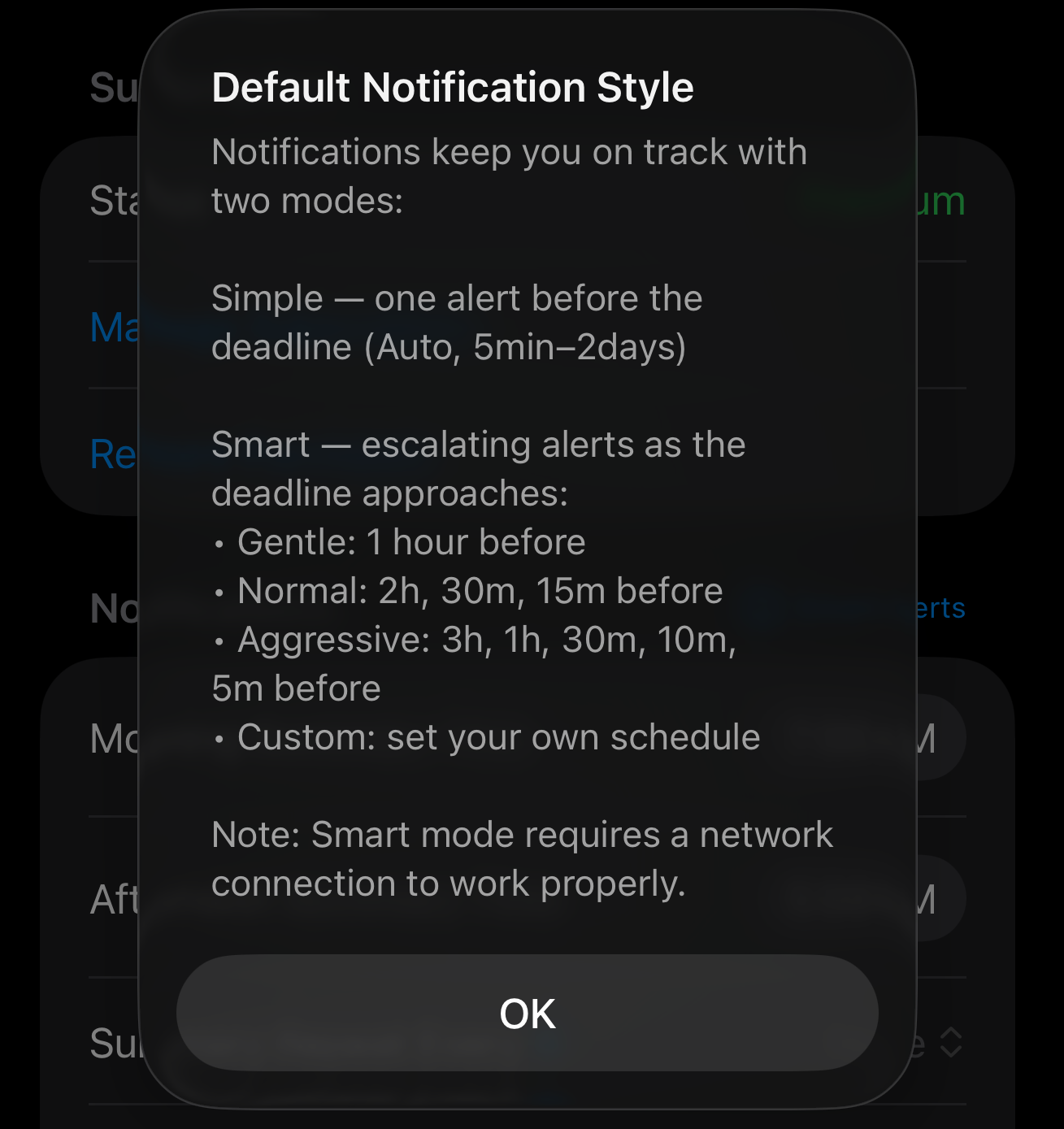
Two Modes, Your Choice
Every reminder now has a notification mode toggle. Pick the one that fits your style.
Simple Snooze
One notification at a fixed time before your deadline. Clean and minimal.
- Auto, 5 min, 15 min, 30 min
- 1 hour, 2 hours, 1 day, 2 days
Smart Snooze
Multiple escalating notifications that get more frequent as the deadline gets closer.
- Gentle, Normal, Aggressive presets
- Or build your own Custom schedule
Smart Snooze Intensity Levels
Smart Snooze comes with four intensity presets. Each one defines how many reminders you'll get and when they fire.
| Level | Schedule |
|---|---|
| Gentle | 1 hour before, due |
| Normal | 2 hours, 30 min, 15 min, due |
| Aggressive | 3 hours, 1 hour, 30 min, 10 min, 5 min, due |
| Custom | You decide: pick any combination of relative offsets and absolute dates |
Custom Schedules
Want full control? Custom Smart Snooze lets you build your own notification timeline. Add entries like "2 days before" or "July 20, 3:00 PM". The "due" notification is always included automatically. Entries are validated to ensure at least 5 minutes between each alert.
Notification Actions
When a Smart Snooze notification arrives, you can act on it right from the lock screen.
Snooze 1h
Need more time? Tap to snooze for one hour. Remaining Smart Snooze alerts are cancelled automatically.
Complete
Done? Mark the reminder complete directly from the notification. All pending alerts are cleared.
How It Works Behind the Scenes
Smart Snooze notifications are delivered with exact timing, no polling delays. When you save a reminder, the schedule is processed server-side and each alert is queued to fire at precisely the right moment. Even if the app isn't running, you'll still get your reminders on time.
Set a Default Style
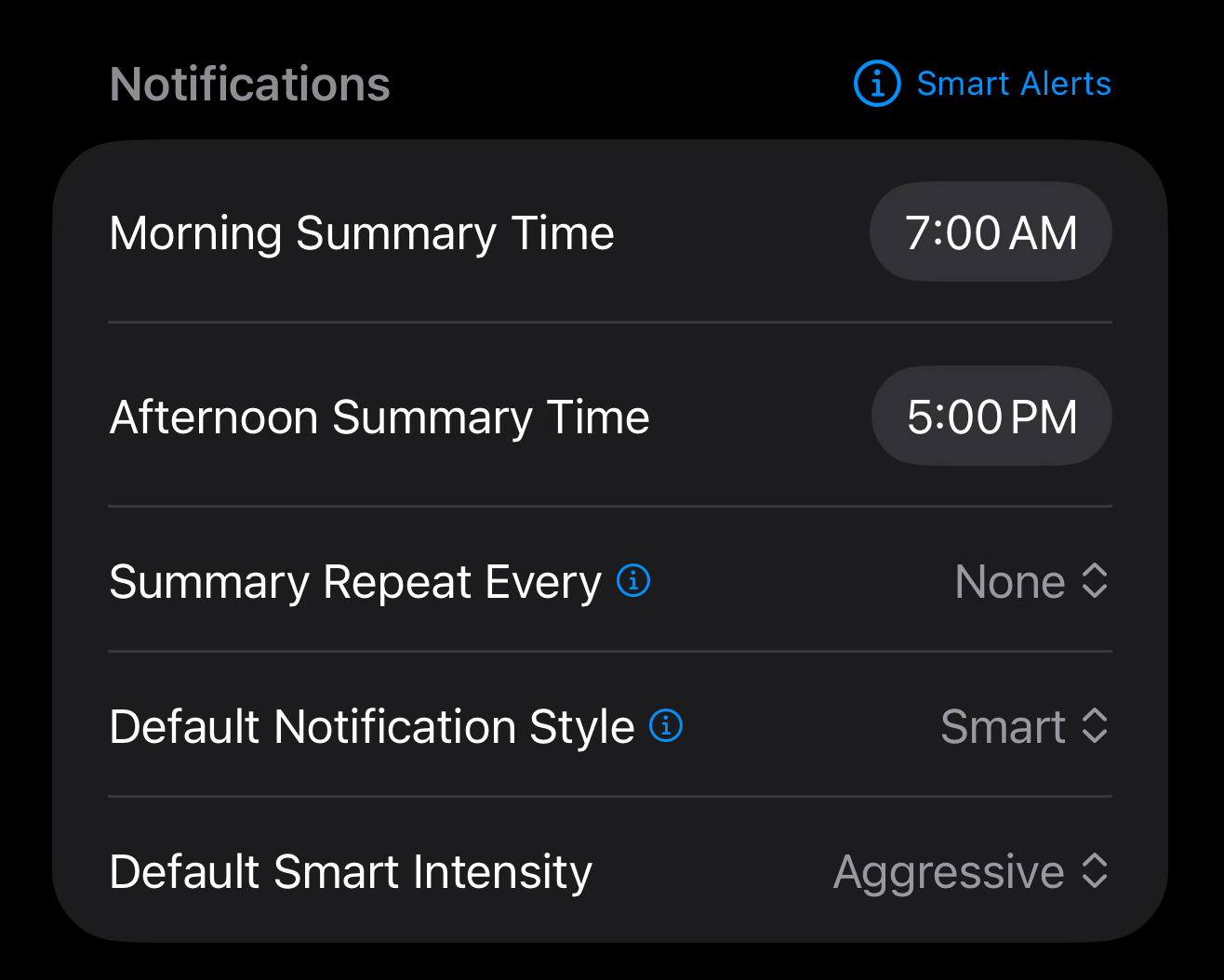
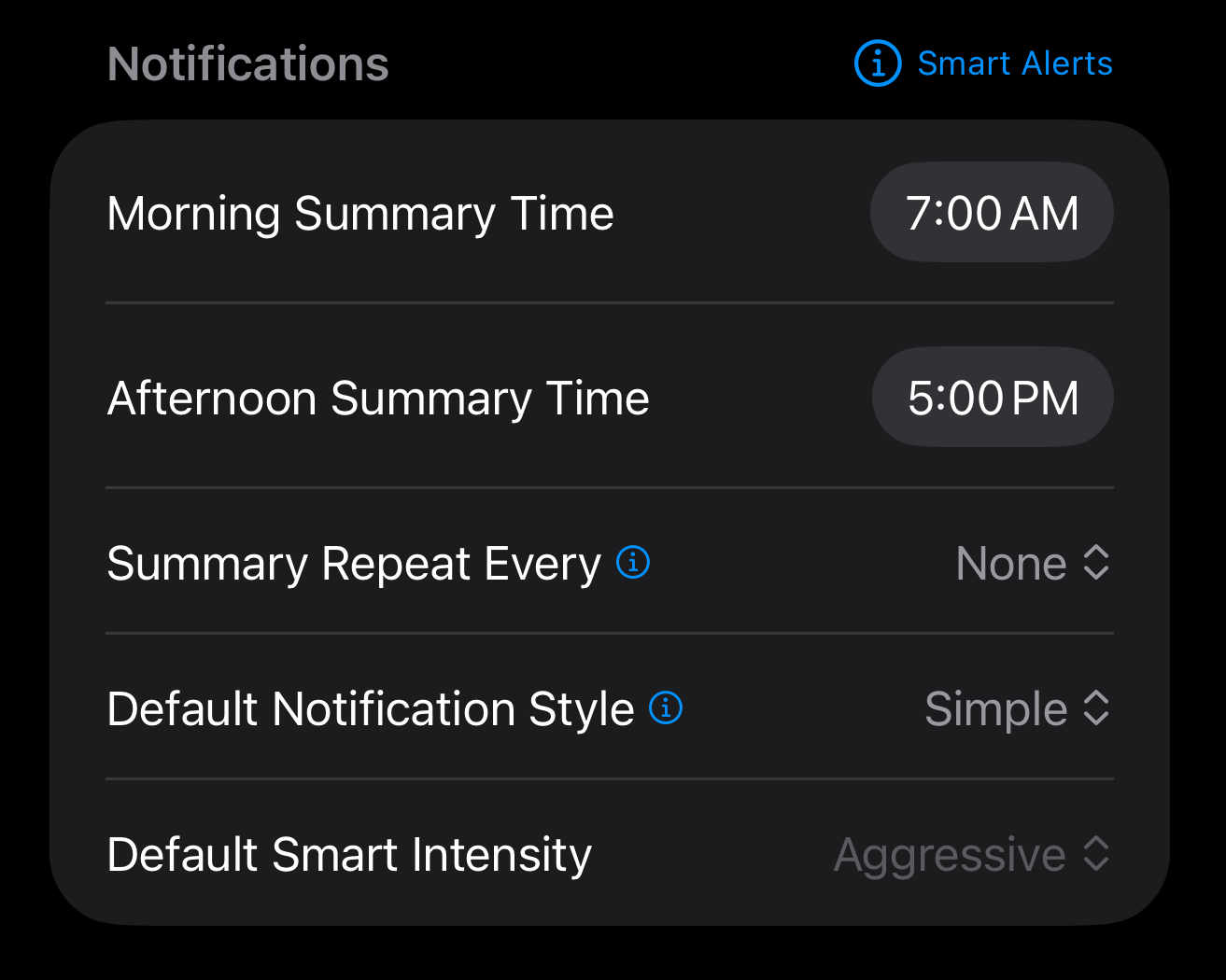
Don't want to configure every reminder individually? Head to Settings → Notifications to set a default notification style and Smart Snooze intensity. New reminders will automatically use your preferred settings.
Get Started
Update to the latest version of LiMinder from the App Store. Open any reminder, tap the notification mode toggle, and try Smart Snooze with your next deadline.